Guide › Teacher › Tests
Tests
Write it once, let them attempt it, mark only what needs you.
Watch it instead · 2m 04s
- 1
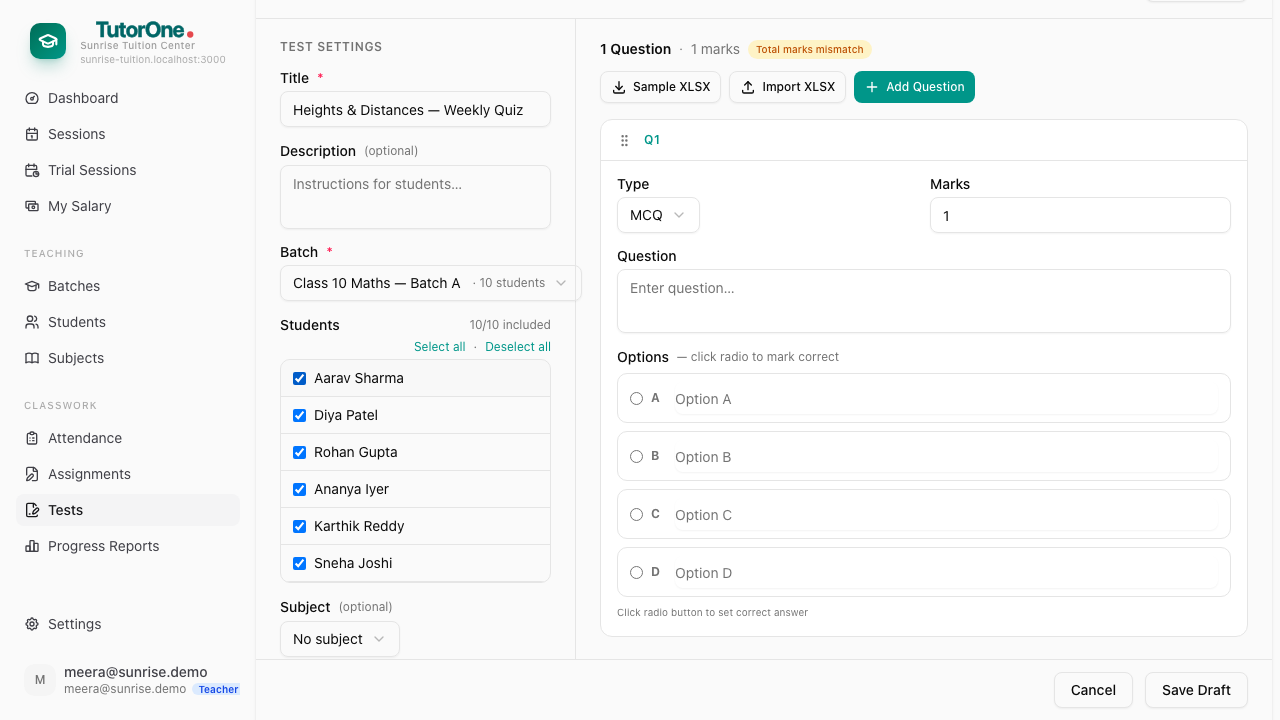
Open Tests and press New test. Name it, choose the batch, set the duration and the total marks.
- 2
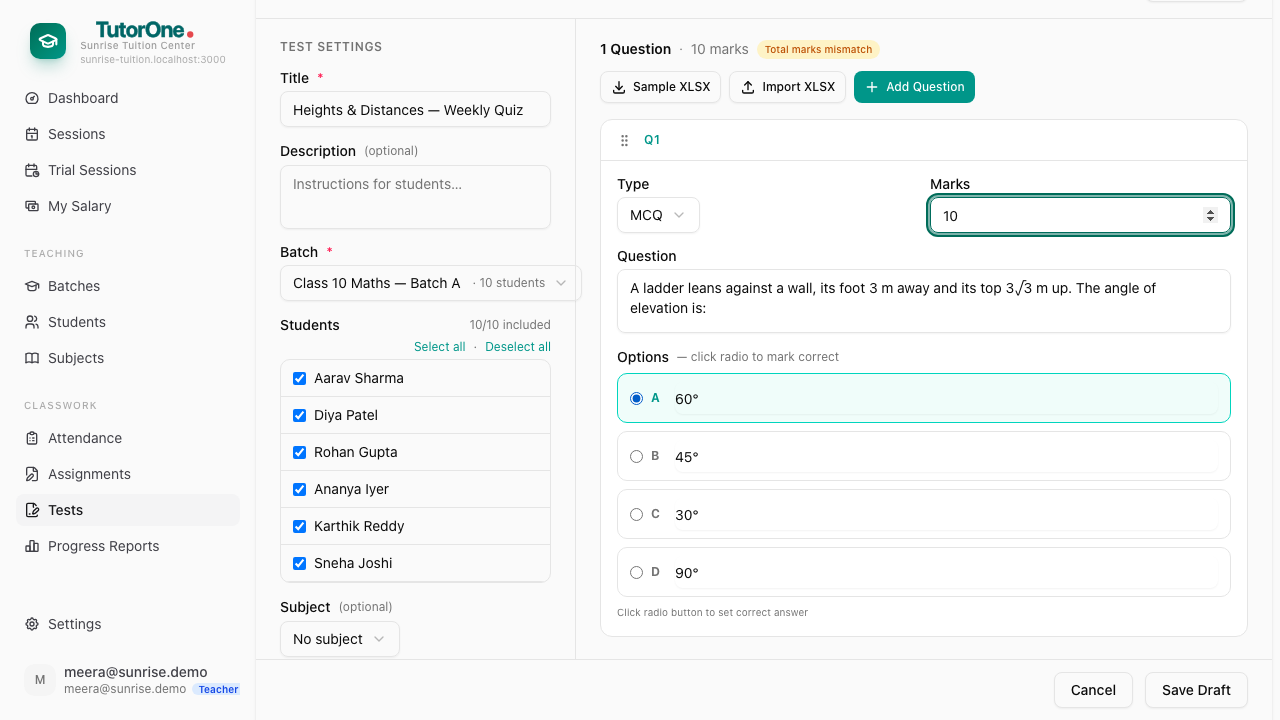
Type the first question, add the options, mark which one is correct and give it its marks. Multiple choice marks itself.
- 3
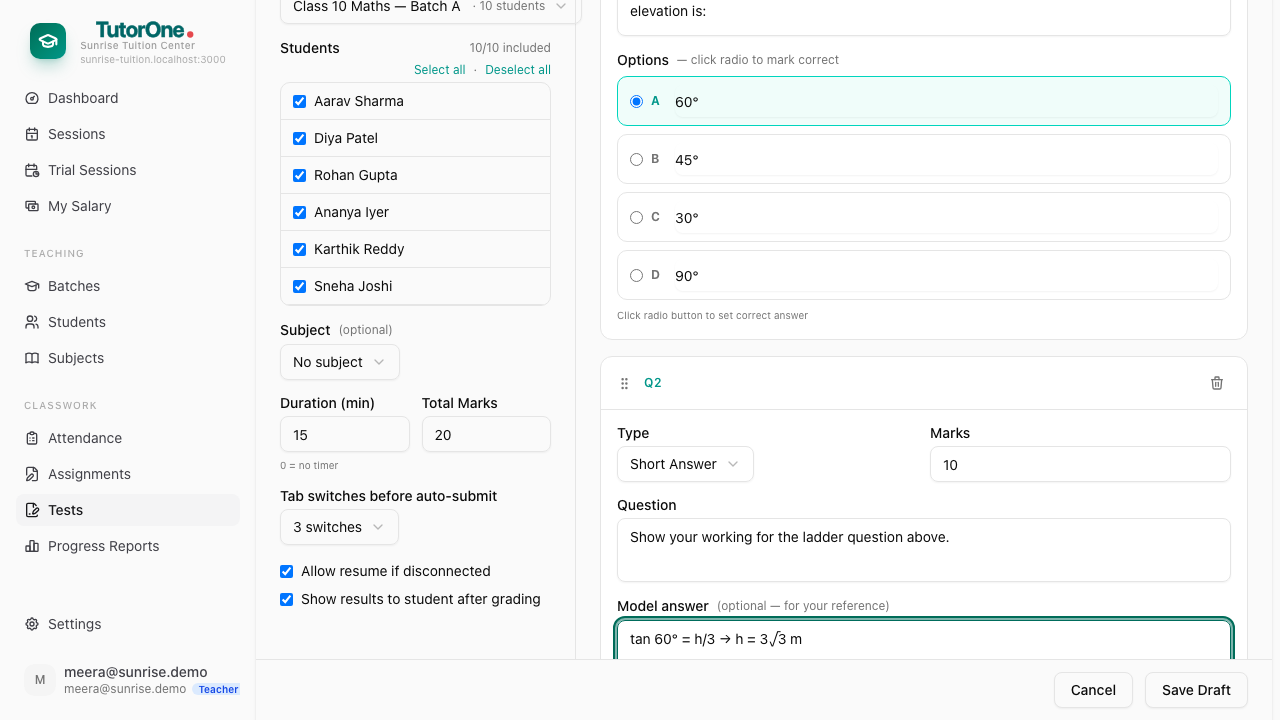
Press Add Question, change its type to Short Answer, and add a written question with a model answer for your own reference.
- 4
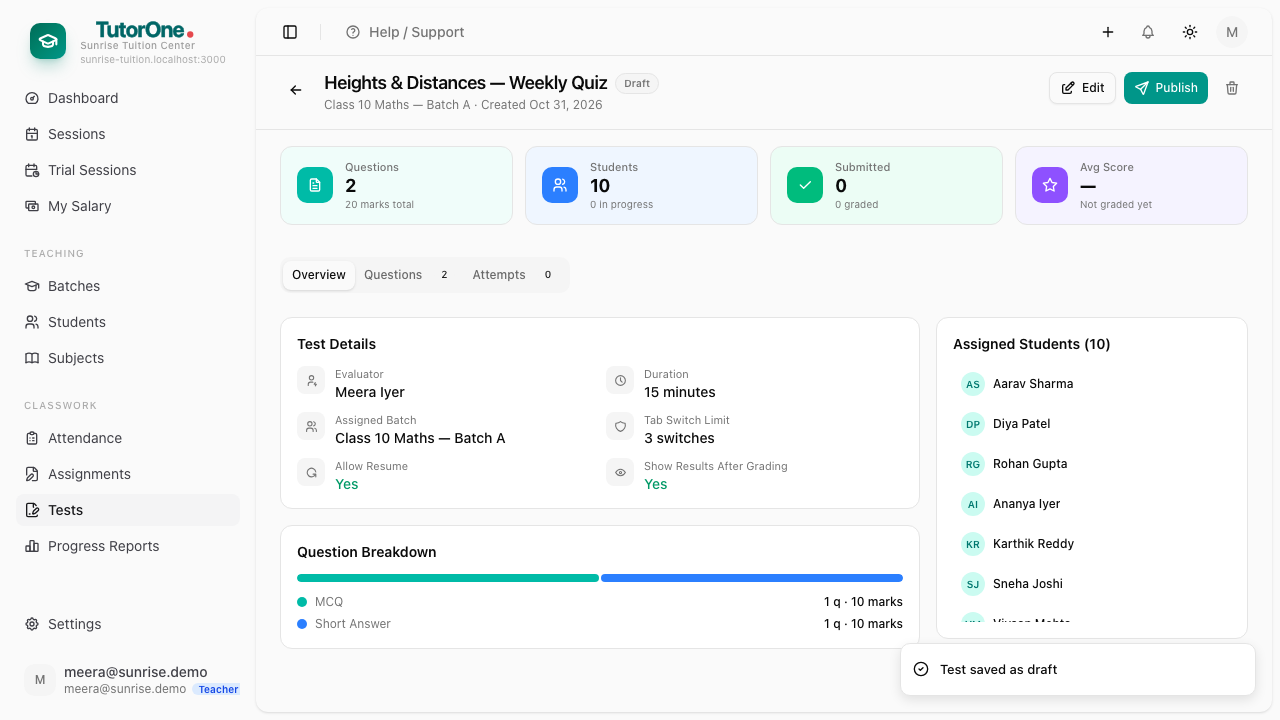
Press Save Draft as you go — a draft is invisible to students. When it's ready, press Publish.
- 5
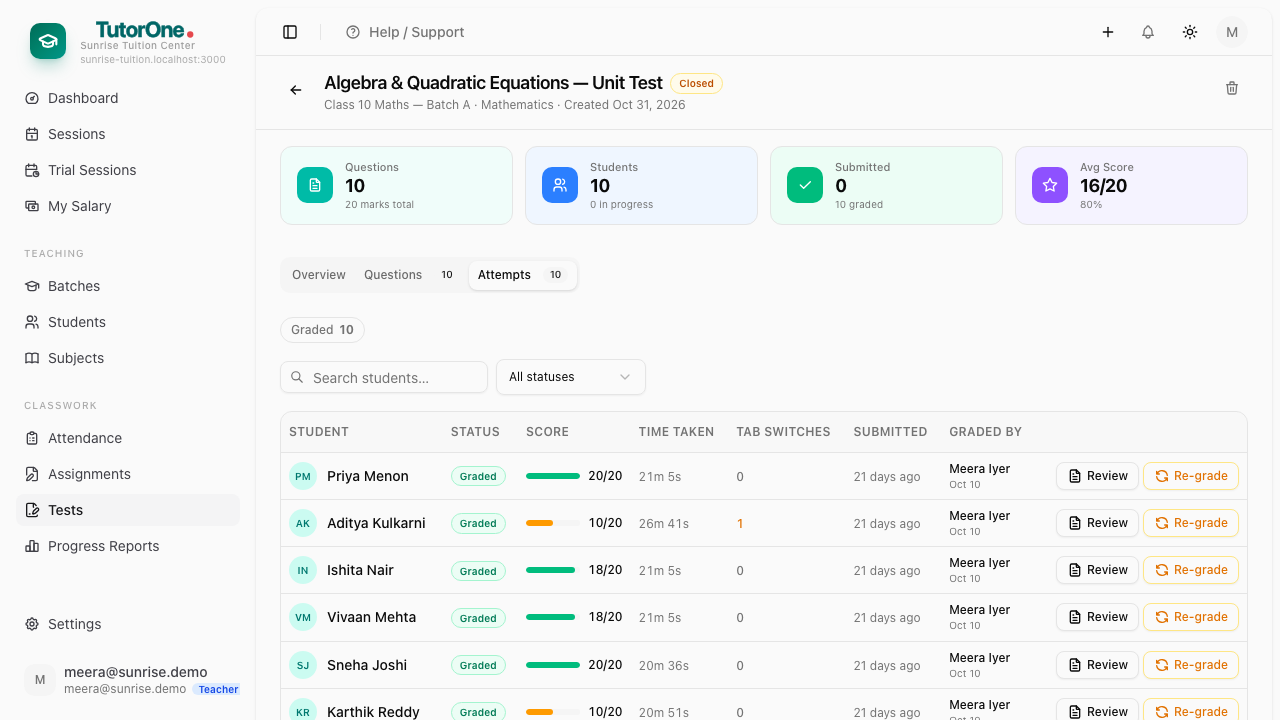
Once students have attempted it, open the test and press Attempts. The page opens on Overview, which has no scores on it.
- 6
A row saying Grade is an attempt still waiting on you. Open it: the multiple choice is already marked, the written answer isn't.
- 7
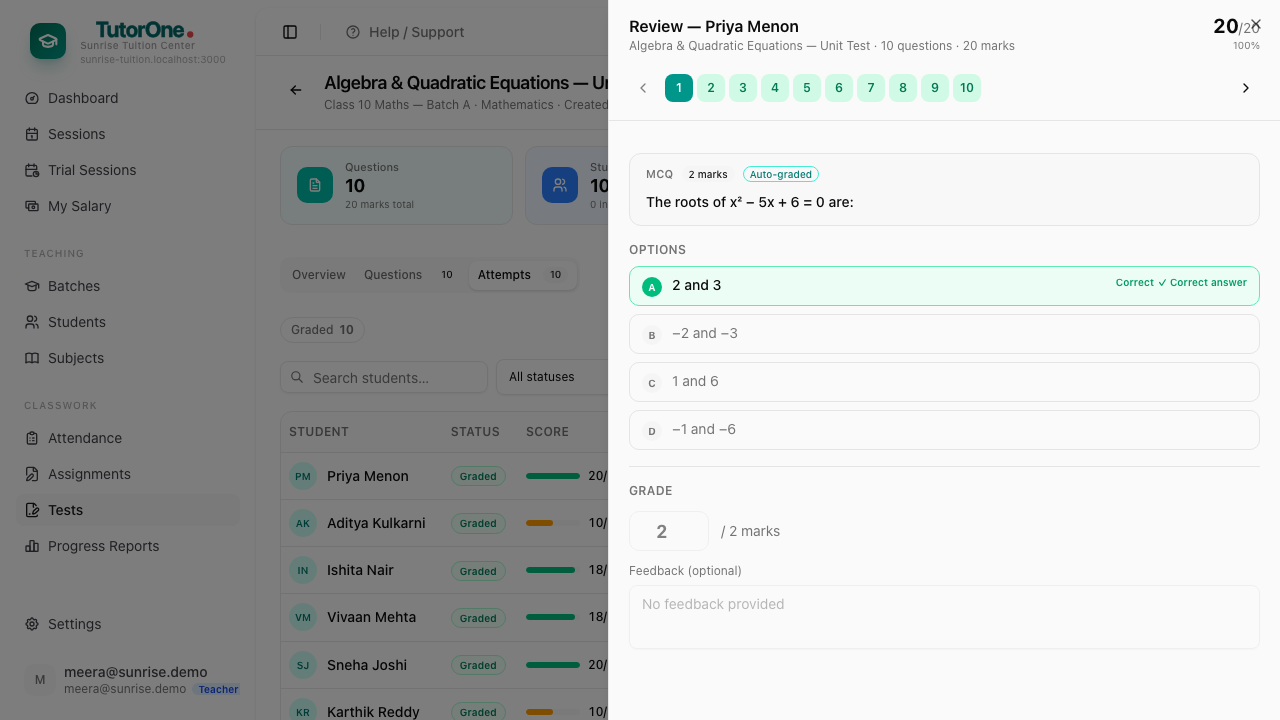
Give the written answer a mark and a line of feedback, then press Submit Grades. Her total updates.
- 8
Review reopens exactly what she wrote, any time you need it again.
The Attempts table also shows how long each student took and whether they switched tabs mid-test. The list shows tests you created — another teacher's test for the same batch won't appear.